# Getting started with React Ink
Have you ever wondered if you can use React for the command-line interface (CLI)? Yes, you can!!! React is not only used for web development but also for making Android and iOS apps [(React Native)](https://reactnative.dev/) and VR Apps [(React 360)](https://github.com/facebookarchive/react-360#readme) and a lot more!!! [React Ink](https://github.com/vadimdemedes/ink) is used to build CLI apps with React and it is very easy to get started so let us get started.
# Creating a React Ink Project
For this example, I am going to be using [CodeSandBox](https://codesandbox.io/) but you can use anything you wish to as long you have Node v10 or higher and npm installed.
To get started we will firstly make a new directory and move into it (note that you shouldn't do this if you are using a cloud IDE like codesandbox or stackblitz)
```
mkdir react-ink
```
```
cd react-ink
```
Now we need to create an ink app and we can do that using [`create-ink-app`](https://github.com/vadimdemedes/create-ink-app)
```
npx create-ink-app
```
If you are using an older version of npm, you might not have npx installed, in that case, you can install the `create-ink-app` cli and use that.
To install the cli, run the following command:
```
npm install -g create-ink-app
```
Then you can just run the following command:
```
create-ink-app
```
Now pat yourself on the back, you have successfully created a React Ink project.
# Playing around with the started code
This is how our directory structure should look like -
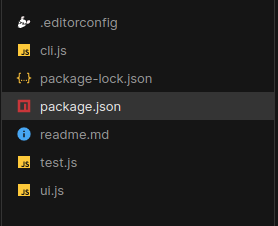
Let us look at these files one by one
First we have `ui.js`. This is where you will write your React code. This is what we should be seeing in the file right now -
```js
'use strict';
const React = require('react');
const {Text} = require('ink');
const App = ({name = 'Stranger'}) => (
Hello, {name}
);
module.exports = App;
```
First of all, React is imported. Text is a JSX Component that is used to show any text in the CLI. Here the App takes in a prop, name and says "Hello, " if the name is supplied or else it would say "Hello, Stranger". Also, notice how the name is styled with a green text color. Now you might ask from where is the name prop coming? If you see `cli.js`, you will find the answer.
`cli.js`-
```js
#!/usr/bin/env node
'use strict';
const React = require('react');
const importJsx = require('import-jsx');
const {render} = require('ink');
const meow = require('meow');
const ui = importJsx('./ui');
const cli = meow(`
Usage
$ sandbox
Options
--name Your name
Examples
$ sandbox --name=Jane
Hello, Jane
`);
render(React.createElement(ui, cli.flags));
```
Here the App component is being imported using a special `importJSX` command. [Meow](https://www.npmjs.com/package/meow) is a library that allows us to make interactive CLIs. Here look at the `render` statement. A React element is being created where the App Element is passed as the first argument (ie the JSX part of the element) and then `cli.flags` is an arrow of props that will be passed into the element. This is where the name prop is coming from!!!
Now if we run `node cli.js`, the code will be run. Running it with no arguments will yield the following result -
```
node cli.js
```

Now let us pass in the name flag.
```
node cli.js --name=
```
Replace yourName with your name and see the output

Codesandbox -
Use the terminal to run the file and ignore the browse preview
%[https://codesandbox.io/embed/hardcore-greider-i6kjn?expanddevtools=1&fontsize=14&hidenavigation=1&module=%2Fcli.js&moduleview=1&theme=dark]
# Typescript
React Ink supports typescript as well and that is awesome so let us take a look at it. To start a react-ink project with typescript, we need to pass in the typescript flag.
Firstly let us make a directory and move into it
```
mkdir react-ink-ts
```
```
cd react-ink-ts
```
Now let us create a typescript React Ink project
```
npx create-ink-app --typescript
```
If you are using an older version of npm, you might not have npx installed, in that case, you can install the `create-ink-app` cli and use that.
To install the cli, run the following command:
```
npm install -g create-ink-app
```
Then you can just run the following command:
```
create-ink-app --typescript
```
This time the directory structure is significantly different -
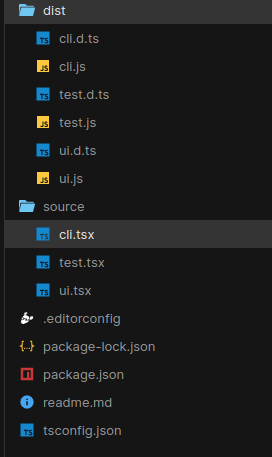
We have a source folder where all the typescript files are stored. Whenever we run `npm start`, the typescript is compiled into javascript and the output is stored in the `dist` folder. Most of the other things are the same. Keep in mind that the `cli.js` file in the `dist` folder is the main executable file.
Codesandbox -
Use the terminal to run the file and ignore the browse preview
%[https://codesandbox.io/embed/billowing-https-qkx6h?expanddevtools=1&fontsize=14&hidenavigation=1&module=%2Fsource%2Fcli.tsx&moduleview=1&theme=dark]
# Symlink
One thing you might have noticed is that when you run `create-ink-app`, it links the project. What is exactly happening? A symlink is created which allows you to run a command that invoked the cli.js file of this specific project. If you run your directory name as a command, you will see the same result as `node cli.js` or `node dist/cli.js` in the case of typescript.
